
Backups & Exports
Protect your data with automated daily backups. Configure retention policies, manually trigger backups, and export data for compliance and disaster recovery.
Backup Strategy
Section titled “Backup Strategy”RepairOps uses a 3-2-1 backup strategy:
- 3 copies of your data (live database + 2 backups in different locations)
- 2 different storage types (local + cloud)
- 1 offsite location (geographic redundancy)
This ensures you can recover from accidental deletion, corruption, or data center outage.
Automated Daily Backups
Section titled “Automated Daily Backups”How Backups Work
Section titled “How Backups Work”When: Every day at 2 AM (shop timezone)
What’s included:
- Full database snapshot (all tables, data, schema)
- File attachments (photos, documents, etc.)
- User settings and configurations
What’s NOT included:
- Stripe billing records (maintained separately by Stripe)
- Email delivery logs (retained for 90 days)
- Temporary files and cache
Backup Retention
Section titled “Backup Retention”Backups are retained according to your plan:
| Plan | Retention |
|---|---|
| Starter | 30 days |
| Pro | 60 days |
| Enterprise | 2 years |
Older backups are automatically deleted. For long-term archival (e.g., regulatory compliance), export data instead.
Storage Location
Section titled “Storage Location”- Starter/Pro: AWS S3 (encrypted, replicated to 3 regions)
- Enterprise: Configurable (AWS, Google Cloud, Azure, or on-premises)
All backups are encrypted at-rest (AES-256) and in-transit (TLS).
Restore from Backup
Section titled “Restore from Backup”Restoring to Sandbox (Test Environment)
Section titled “Restoring to Sandbox (Test Environment)”Test a backup without affecting live data:
- Navigate to Settings → Backups → Restore to Sandbox
- Select backup date and time
- Click Create Sandbox
- RepairOps creates a temporary copy (takes 5-10 minutes)
- Use sandbox to verify data before restoring to production
Sandbox access:
- URL:
https://yourshop-sandbox.repairops.io - Same data as backup date
- Separate from your live system
- Automatically deleted after 7 days
Restoring to Production
Section titled “Restoring to Production”Restore your live system from a backup:
- Settings → Backups → Restore to Production
- Select backup date and time
- Confirm backup details (size, date, data summary)
- WARNING: Current data will be replaced
- Click Restore
- RepairOps begins restore (typically 5-30 minutes depending on size)
During restore:
- System is read-only (staff can’t make changes)
- Repair tickets can be viewed but not edited
- Customers can still access portal but can’t submit repairs
After restore completes:
- System comes back online
- All changes since backup date are lost
- Staff can resume normal operations
When to restore:
- Accidental mass deletion (tickets, customers, etc.)
- Data corruption
- Ransomware attack
- Recovering from user error
Manual Backups
Section titled “Manual Backups”Create an on-demand backup anytime:
- Settings → Backups → Create Manual Backup
- Click Backup Now
- RepairOps creates a snapshot immediately
- Manual backups are retained until manually deleted
- Useful before major changes (bulk imports, plugin installations, etc.)
Manual backups don’t count toward retention limits; you can keep them indefinitely.
Data Exports
Section titled “Data Exports”Export your data in standard formats (CSV, JSON) for:
- External analysis (data science, BI tools)
- Migration to another system
- Compliance and auditing
- Backup archival
What Can Be Exported
Section titled “What Can Be Exported”- All Tickets — Complete ticket history with all fields
- All Customers — Customer contact info, repair history
- All Invoices — Invoice records and PDF attachments
- All Inventory — Parts catalog and stock levels
- All Users — Team member info, roles, permissions
- All Transactions — POS sales and payments
- Custom Selection — Choose specific date range or filters
Exporting Data
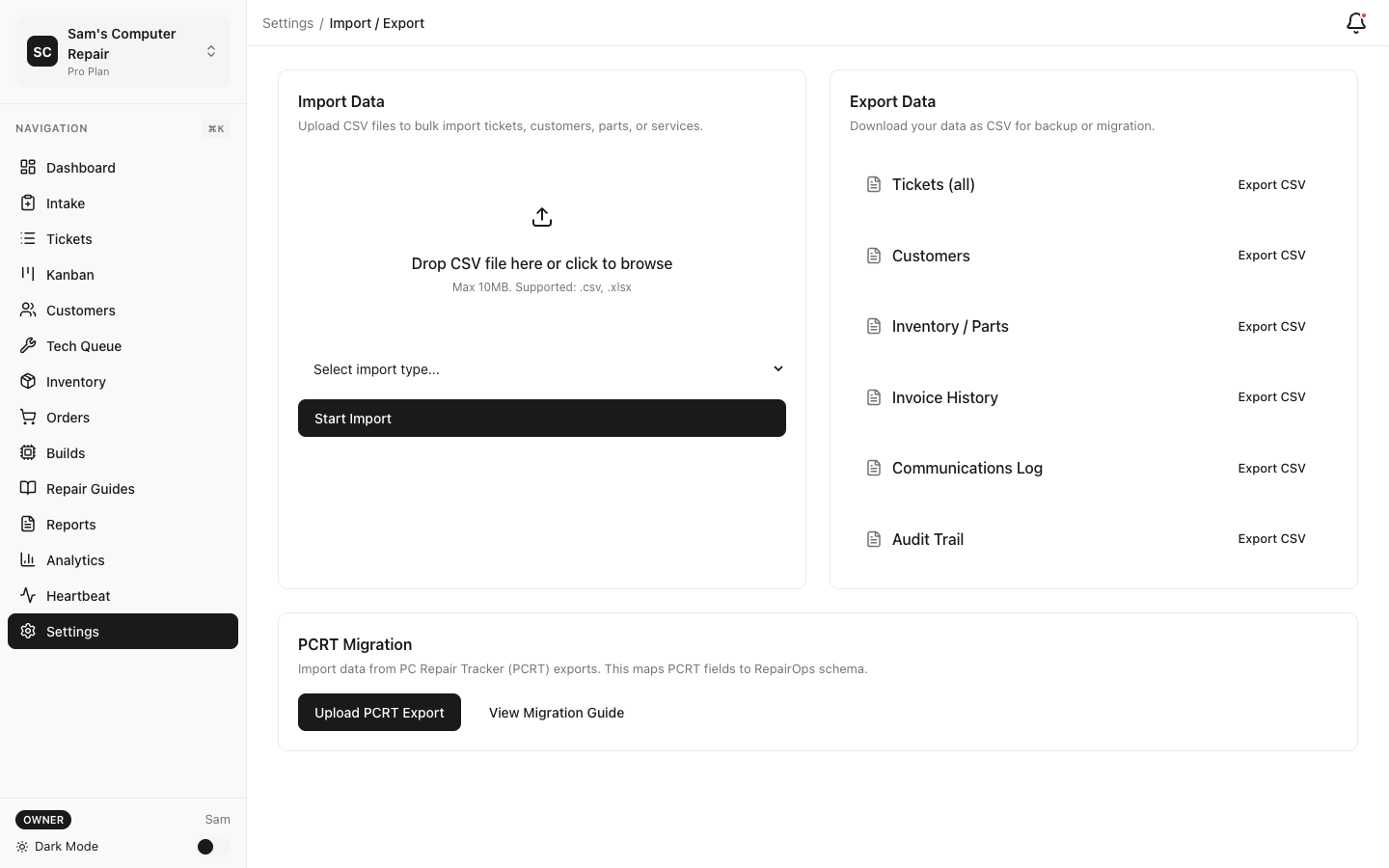
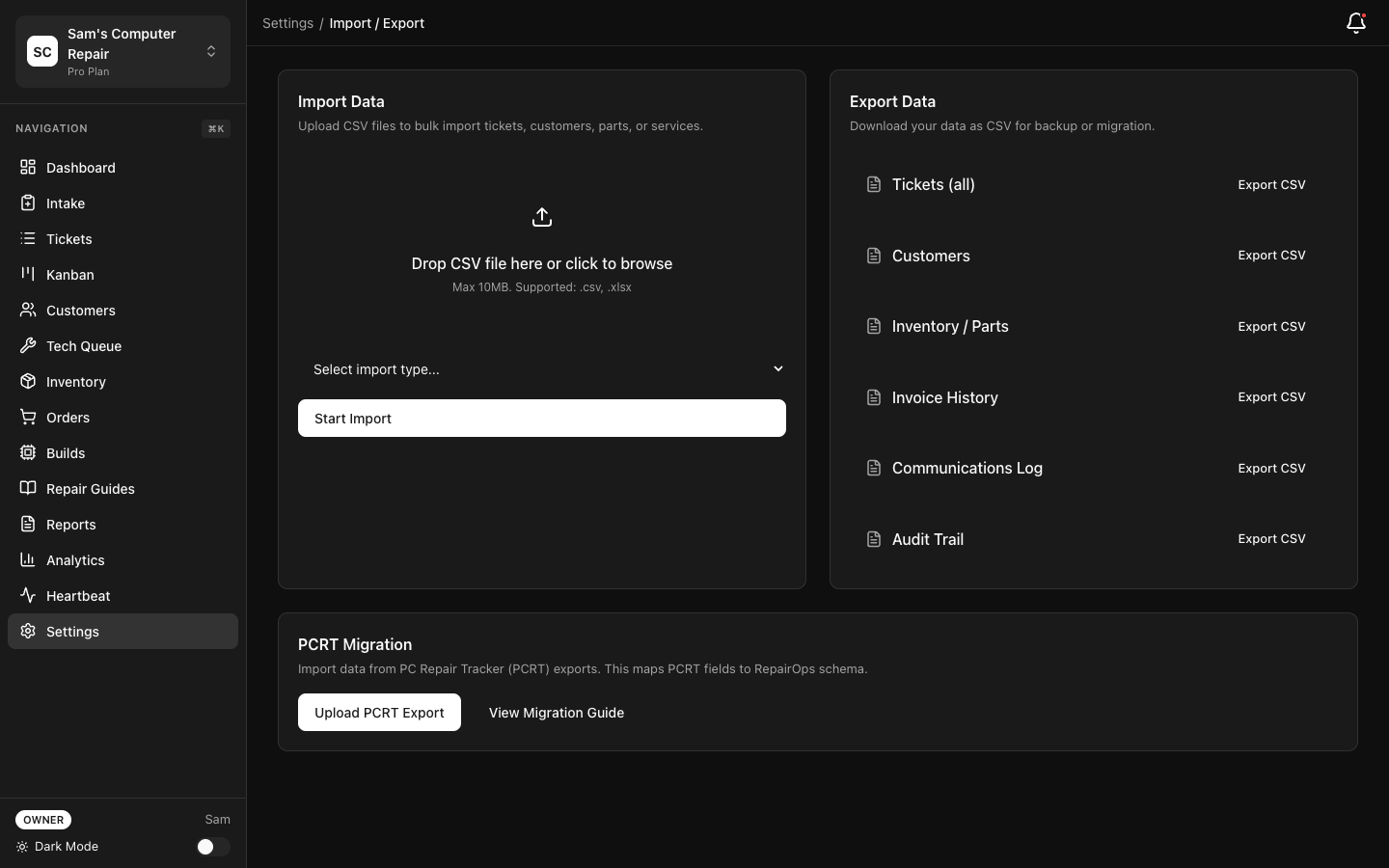
Section titled “Exporting Data”- Settings → Data & Compliance → Export Data
- Select what to export:
- Tickets (optionally filter by date range, status, shop)
- Customers
- Invoices
- Inventory
- Users
- Transactions
- Select format:
- CSV — For Excel, Google Sheets, databases
- JSON — For custom applications, APIs
- PDF — For archival (invoices only)
- Click Export
- Download begins (size typically 10 MB - 1 GB)
Export files are encrypted and available for 30 days.
CSV Format Details
Section titled “CSV Format Details”CSV exports include:
- All columns from the table
- Headers on first row
- UTF-8 encoding
- Standard comma separation (configurable)
Useful columns include:
- Tickets: ticket_id, customer_name, status, created_at, updated_at, technician, total_cost
- Customers: customer_id, name, phone, email, address, lifetime_spend, last_repair_date
- Invoices: invoice_id, ticket_id, amount, date, status, payment_method
JSON Format
Section titled “JSON Format”JSON exports include:
- Array of records
- Full object structure (nested relationships)
- ISO 8601 timestamps
- All fields (including metadata)
Useful for API imports to external systems.
Compliance Exports
Section titled “Compliance Exports”For regulatory requirements (GDPR, CCPA, HIPAA), export all data on a customer:
GDPR Data Export (Right to be Forgotten)
Section titled “GDPR Data Export (Right to be Forgotten)”- Settings → Compliance → Data Subject Request
- Enter customer’s email address
- Click Export Customer Data
- Generates JSON with all data tied to that customer:
- Profile
- Repair tickets
- Communications
- Invoices
- Payment info (non-sensitive)
Customer can download or you can provide to them.
CCPA Compliance
Section titled “CCPA Compliance”California residents can request:
- All data collected
- Deletion of all data
- Settings → Compliance → Requests
- Handle requests:
- Export request — Generate CCPA-format export
- Deletion request — Permanently delete customer record and all associated data
Audit Exports
Section titled “Audit Exports”Export security and compliance logs:
- Settings → Security → Audit Log
- Filter by:
- Date range
- Event type (login, data change, deletion, etc.)
- User
- Click Export Audit Log
- CSV with:
- Timestamp
- User
- Action performed
- Resource affected
- IP address
- Result (success/failure)
Useful for:
- Security reviews
- Compliance audits
- Investigating suspicious activity
- Tax/accounting records
Backup Encryption
Section titled “Backup Encryption”At-Rest Encryption
Section titled “At-Rest Encryption”All backups stored on disk are encrypted with:
- Algorithm: AES-256-GCM
- Key Management: AWS KMS (cloud) or Hardware Security Module (Enterprise)
- Automatic: No configuration needed
In-Transit Encryption
Section titled “In-Transit Encryption”Backups transferred over the network use:
- Protocol: HTTPS/TLS 1.3
- Certificate: Automatically managed (Let’s Encrypt)
Customer-Managed Keys (Enterprise)
Section titled “Customer-Managed Keys (Enterprise)”Enterprise customers can:
- Bring their own KMS (AWS KMS, Google Cloud KMS, Azure Key Vault)
- Manage encryption keys independently
- Rotate keys on your schedule
Contact support for setup.
Disaster Recovery Plan
Section titled “Disaster Recovery Plan”Testing Your Backups
Section titled “Testing Your Backups”RepairOps recommends testing backups quarterly:
- Settings → Backups → Restore to Sandbox
- Select a backup from 1-2 weeks ago
- Verify data looks correct
- Test a few workflows (create ticket, approve estimate, etc.)
- Confirm data integrity
If backups fail, you’ll discover it before you need them.
Recovery Time Objective (RTO)
Section titled “Recovery Time Objective (RTO)”How quickly can you recover?
- Automated restore: 5-30 minutes (depends on database size)
- Manual intervention: Add 1-2 hours for verification
- Critical fixes: Emergency restores available for Enterprise
Recovery Point Objective (RPO)
Section titled “Recovery Point Objective (RPO)”How much data could you lose?
- Daily backups: Up to 24 hours of data (everything since midnight)
- Manual backups: Can trigger before major changes
- Replication: Real-time replication to standby (Enterprise only)
Disaster Recovery Checklist
Section titled “Disaster Recovery Checklist”- Know how to access backups (Settings → Backups)
- Test restore to sandbox monthly
- Verify email address on file (restore notifications sent there)
- Document critical data (customer list, current jobs, in-progress repairs)
- Have offline copies of important documents (vendor agreements, service bulletins)
- Brief all managers on backup/restore procedures
Backup Monitoring
Section titled “Backup Monitoring”Backup Status
Section titled “Backup Status”- Settings → Backups → Backup Status
- View:
- Last backup completed (time and size)
- Next scheduled backup (time)
- Backup history (last 30 backups)
- Any backup errors or warnings
Alerts
Section titled “Alerts”Enable backup notifications:
- Settings → Backups → Notifications
- Check:
- Notify if backup fails
- Notify if backup is delayed (> 2 hours)
- Notify if backup is large (> 500 MB)
- Notifications sent to admin email
Troubleshooting
Section titled “Troubleshooting”Q: How long does a backup take? A: 5-30 minutes depending on database size. Large shops (500 MB+) take longer.
Q: Can I restore just one ticket or customer? A: Not automatically. You can:
- Restore to sandbox
- Manually copy the ticket/customer data
- Import into production
Or contact support for targeted recovery.
Q: What if backup storage is full? A: Automatic backups continue; oldest backups are deleted per retention policy. Contact support if you need to increase storage.
Q: Can I export to an external drive for off-site storage? A: Exports are available for download to your computer/drive. For automated off-site backup, contact support (Enterprise feature).
Related Documentation
Section titled “Related Documentation”- Security — Encryption and access control
- Billing — Backup storage costs
- Self-Hosted — Custom backup configuration